You want your keyboard to feel a little more personal, and you may want a quick way to change its look without changing your whole phone. Maybe you are setting up a new Android device and want an easier, more colorful typing screen right away.
1. What My Photo Keyboard is
My Photo Keyboard is an Android app from Multimedia Apps in the Tools category. On APKDown, you can find it as My Photo Keyboard, with package name multimedia.custom.keyboard.
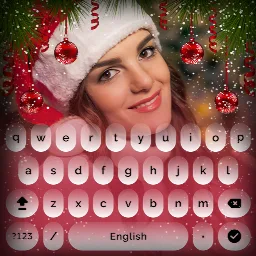
At its core, this app is a keyboard customizer. Think of it like giving your typing area a new outfit. The description says you can make the keyboard look more beautiful with free themes, add a photo background, and adjust text styling for the keys.
The current version listed is 32.0, the app size is 27.1 MB, and it works on Android 6.0 and up. The app page also shows 10M+ downloads and a 4.4 rating on the site.
2. Who makes it and what the app says about privacy
The developer is listed as Multimedia Apps. The release notes mention bug fixes, crash and ANR fixes, and an enhanced new design. ANR means Application Not Responding, which is Android’s way of saying an app froze for too long.
The app description says, “We will never collect any of personal information.” That is the developer’s statement in the listing. As with any app, it is still a good idea to review the permissions and only enable what you are comfortable using.
Some of the listed permissions include camera access, internet access, and notifications. That fits the features described, such as using a photo from the camera and receiving app updates or alerts.
3. Main things you can do with it
From the description, the app focuses on changing how your keyboard looks and behaves. You can choose a photo from your gallery or take one with the camera, then use it as the keyboard background. You can also pick different themes, font styles, font colors, and keyboard height settings.
There are more than 50 local languages supported, so it may be useful if you type in more than one language. The app also mentions 500+ emoji, emoji art, GIF stickers, auto spell check, swipe typing, speak to type, and direct search from the keyboard.
For more editing-focused tasks, it includes word tools such as select, cut, copy, paste, home, end, and tab. If you use a tablet, the listing also says there is a layout design for tablet use.
| Feature area | What the listing says |
|---|---|
| Background | Set a photo from gallery or camera |
| Themes and style | Different themes, font type, font size, font color |
| Typing help | Swipe typing, auto spell check, speak to type |
| Language support | 50+ local languages |
| Extras | 500+ emoji, emoji art, GIF sticker sharing, direct search |
4. What you need before installing
Before you install, check that your device runs Android 6.0 or higher. You will also want enough free storage for the 27.1 MB download, plus a little extra space for normal app data.
If you plan to use a photo background, make sure you already have a picture saved in your gallery, or be ready to take one with the camera. Since the app mentions language support, it can also help to know which language you want your keyboard set to before you begin.
Here is a short checklist you can use:
- Android version: Android 6.0 or newer
- Storage: Enough space for a 27.1 MB app
- Photo source: A gallery image or camera access if you want a custom background
- Typing needs: Your preferred language or languages
- Comfort level: Review permissions before turning them on
5. A short first-steps walkthrough after install
After installation, open the app and follow the setup flow it gives you. The description says to select the My Photo Keyboard button, then set the input method to the My Photo Keyboard option. In Android, an input method is simply the tool your phone uses for typing, like choosing which keyboard to use.
Next, pick an image from your gallery or camera and preview the keyboard. After that, try changing the theme, font style, or font size so you can see how the keyboard feels before you settle on a look.
If the app asks for permissions, grant only the ones you need for the features you want. For example, camera permission makes sense if you want to take a background photo inside the app.
6. Using the keyboard day to day
Once it is set up, the keyboard should work in other apps on your device. That means you can use it for messages, notes, search boxes, and other places where Android shows a keyboard. The description says the app applies to the device and is enabled for all apps.
You may want to test a few things first: typing speed with swipe input, spell checking, and the font size. If you use emoji a lot, the 500+ emoji and emoji art options may be the easiest features to notice right away. If you type in another language, check that the language you want is active and comfortable to use.
Tablet users can also look for the tablet layout option mentioned in the listing. If your screen feels cramped or too large, keyboard height and layout settings are the places to adjust.
7. Where to go next
If you want to learn more, the next step is to read the app page carefully and try the features one by one instead of changing everything at once. That makes it easier to spot which setting helps most.
You can also visit the official website listed by the developer at myphotokeyboard.in if you want more information from the source. If you are still deciding, keep in mind that the app is aimed at people who want a more personal keyboard, extra language support, and visual customization.
For many people, the simplest starting point is just a photo background, a readable font size, and one language they use every day. From there, you can add the extra tools only if they feel useful.
Related downloads
Need the app this guide mentions? Start from its official listing, not a random search result.